
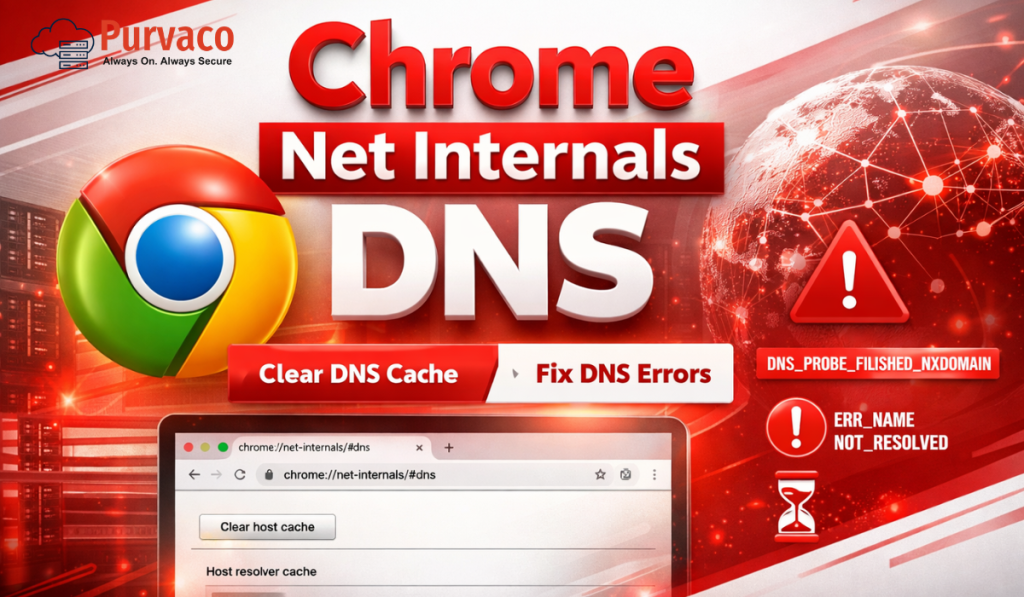
If you’ve ever encountered frustrating browser errors like DNS_PROBE_FINISHED_NXDOMAIN, ERR_NAME_NOT_RESOLVED, or websites simply not loading in Google Chrome, the issue is often related to DNS caching.
Fortunately, Chrome provides a hidden yet powerful tool called Chrome Net Internals DNS, which allows you to clear DNS cache and troubleshoot network-related issues directly from your browser.
In this complete guide, you will learn:
- What Chrome Net Internals DNS is
- How DNS caching works in Chrome
- Step-by-step methods to clear DNS cache
- Common DNS errors and how to fix them
- Advanced troubleshooting techniques
By the end, you’ll be able to fix most Chrome DNS issues within minutes.
What is Chrome Net Internals DNS?
Chrome Net Internals DNS is a built-in diagnostic interface in Google Chrome that provides detailed insights into DNS resolution and network activity.
You can access it by entering:
into the Chrome address bar.
This tool allows you to:
- View DNS cache entries
- Clear host cache
- Debug DNS issues
- Monitor domain resolution
Unlike system-level DNS tools, this works specifically at the browser level, meaning it only affects Chrome.
What is DNS and Why It Matters?
DNS (Domain Name System) acts as the internet’s phonebook. When you type a website like:
DNS translates it into an IP address like:
Without DNS, you would have to remember IP addresses for every website.
What is DNS Cache?
DNS cache is temporary storage where Chrome saves domain-to-IP mappings to speed up browsing.
Example:
- First visit → DNS lookup required
- Next visit → loaded from cache
Benefits of DNS Cache
- Faster website loading
- Reduced DNS queries
- Improved browsing experience
Problems with DNS Cache
However, DNS cache can also cause issues:
- Outdated IP addresses
- Website migrations
- Corrupted cache entries
- DNS misconfiguration
👉 This leads to errors and broken websites.
Why You Should Clear DNS Cache in Chrome
Clearing DNS cache helps resolve many common issues.
Common Situations
Website Not Loading
Even if the site is working, Chrome may use outdated DNS.
Wrong Website Loading
Cached DNS may point to an incorrect IP.
Slow Browsing
DNS delays can slow page load time.
DNS Errors
Common errors include:
- DNS_PROBE_FINISHED_NXDOMAIN
- ERR_NAME_NOT_RESOLVED
- ERR_CONNECTION_TIMED_OUT
How to Clear DNS Cache in Chrome (Step-by-Step)
Follow these steps carefully:
Step 1: Open Chrome Net Internals DNS
Type in address bar:
Step 2: Clear Host Cache
Click:
👉 “Clear host cache”
Step 3: Flush Socket Pools
Now go to:
Click:
👉 “Flush socket pools”
Step 4: Restart Chrome
Close and reopen Chrome for best results.
Step 5: (Optional) Flush System DNS
Windows:
Mac:
Linux:
What Happens After Clearing DNS Cache?
After clearing cache:
- Chrome removes stored DNS entries
- New DNS lookup is performed
- Websites load with updated IP
Benefits
- Fixes DNS errors
- Loads correct websites
- Improves performance
Common DNS Errors & Fixes
DNS_PROBE_FINISHED_NXDOMAIN
Cause:
- Domain not found
- DNS server issue
Fix:
- Clear DNS cache
- Check domain spelling
- Change DNS server
ERR_NAME_NOT_RESOLVED
Cause:
- DNS lookup failure
Fix:
- Flush DNS
- Restart router
ERR_CONNECTION_TIMED_OUT
Cause:
- Slow or unreachable DNS
Fix:
- Use faster DNS (8.8.8.8)
ERR_CACHE_MISS
Cause:
- Corrupted cache
Fix:
- Clear browser cache + DNS
Chrome DNS Cache vs System DNS Cache
| Feature | Chrome DNS | System DNS |
|---|---|---|
| Scope | Browser only | Entire OS |
| Speed | Faster | Slower |
| Clear Method | Net Internals | CMD |
Always clear both for best results.
Advanced Troubleshooting
Change DNS Server
Use:
- Google DNS → 8.8.8.8
- Cloudflare → 1.1.1.1
Disable Extensions
Some extensions interfere with DNS.
Reset Chrome
Fixes internal issues.
Check Internet Connection
Ensure stable connectivity.
Security Benefits of Clearing DNS Cache
Clearing DNS cache also improves security.
Prevent DNS Spoofing
Removes malicious entries.
Avoid Redirect Attacks
Stops fake DNS mappings.
Improve Privacy
Clears browsing traces.
When You Should NOT Clear DNS Cache
- Not needed daily
- Can slow first load
- Only for troubleshooting
Chrome Net Internals DNS Not Working?
In newer Chrome versions:
- Tool is partially deprecated
- Some features moved
Alternatives
- System DNS flush
- Chrome DevTools
- Third-party tools
FAQs
❓ What is chrome://net-internals/#dns?
A Chrome tool to manage DNS cache.
❓ Is it safe?
Yes, completely safe.
❓ How often should I clear DNS?
Only when facing issues.
❓ Does it affect internet?
No, only browser cache.
❓ Can I use it on mobile?
Limited support.
Conclusion
Chrome Net Internals DNS is a powerful troubleshooting tool that can help you fix DNS-related errors quickly and efficiently. Whether you’re dealing with slow browsing, incorrect website loading, or DNS errors, clearing the DNS cache is often the simplest and most effective solution.
By following the steps in this guide, you can resolve most Chrome DNS issues in just a few minutes.
👉 Use the tool above and fix your DNS issues instantly.